
Say you earn in EUR, keep savings in USD and pay rent in PLN. You can read each balance on its own, but you still want to know what you have in total, and why that total changed on a day you did nothing.
MoneyMatter answers both if you set up your accounts and record exchanges the way this guide shows.
Pick your base currency at sign-up
MoneyMatter shows every total in your base currency: the dashboard, stats, reports and account group totals. Pick the currency you compare prices in, usually the one you spend most in.
The Select Base Currency screen appears right after you sign up. It starts on USD, so check it before you click Confirm Currency.
You can pick any currency at sign-up. Later, you can only switch to a currency with long-term rate history, such as USD, EUR, GBP, PLN, UAH, CHF, JPY, CAD or AUD.
Create one account per currency
Create one MoneyMatter account for each real account, in the currency it holds. The Currency field lists only the currencies you’ve added. To add another, scroll to the bottom of the list and click Add new currency +.
Check the currency before you save. You can’t change it later, so a wrong one means creating a new account.
For a bank account that holds several currencies, such as Revolut, create one account per currency: “Revolut EUR” and “Revolut USD”. Put them in an account group and the sidebar shows their combined total in your base currency.
CSV imports follow the same rule. If one account name has rows in two currencies, the import stops with an error, so split those rows into separate account names in the file first.
Enter what left the account
Each transaction uses its account’s currency. Enter the amount that left that account, and MoneyMatter converts it to your base currency.
- You pay 50 USD from your USD account. Enter 50 in that account.
- You pay 50 USD with your EUR card. Enter the EUR amount your bank charged, in the EUR account. To keep a note of the 50 USD, put it in Original amount. That field doesn’t affect your stats.
To check the conversions, switch the transactions page to Table view and look at the Base amount column.
Record currency exchanges as transfers
Say you move 500 USD to a EUR card and 460 EUR arrives. If you record that as an expense and an income, you inflate both your spending and your income totals. Record a transfer:
- Click Add transaction and select the Transfer tab.
- Enter 500 in Amount and pick the USD account in From account.
- Pick the EUR card in To account and enter 460 in Target amount.
- Click Create.
MoneyMatter doesn’t suggest a rate here. Your two amounts set it, so the record matches what your bank or exchange charged.
Bank connections (Plus plan) need one extra step. MoneyMatter can link same-currency transfers between connected accounts for you, but you link exchanges between currencies yourself. Until you do, the two sides count as spending and income. Open the imported transaction and select the Transfer tab. If the other side is already recorded, use Link the other side. If it isn’t, pick the other account.
Why your net worth moves when you spend nothing
MoneyMatter uses a different rate for each kind of number:
- Transactions keep the rate of their own date. Pay 50 USD on 3 March with EUR as your base, and MoneyMatter saves the base amount at that day’s rate. Last month’s report shows the same numbers today as it did last month.
- Current balances use the latest rate. Rates update once a day, at 18:00 UTC.
- Balance charts use each day’s rate. The chart values what you held on a given day at that day’s rate.
Say your base currency is EUR and you hold 1,000 USD. If the rate drops from 0.92 to 0.90, your net worth falls by 20 EUR with no transaction behind it.
For the same reason, when you hold foreign currency, a month’s income minus spending usually won’t match the change in your net worth. The report shows what you spent at the time. The chart shows what your money was worth that day.
Use a custom rate only if you want one fixed rate
Your bank’s rate rarely matches the market rate, so you may want to enter your own. Go to Settings → Currencies, expand the currency’s row, uncheck Live update, type the rate in either field and click Save.
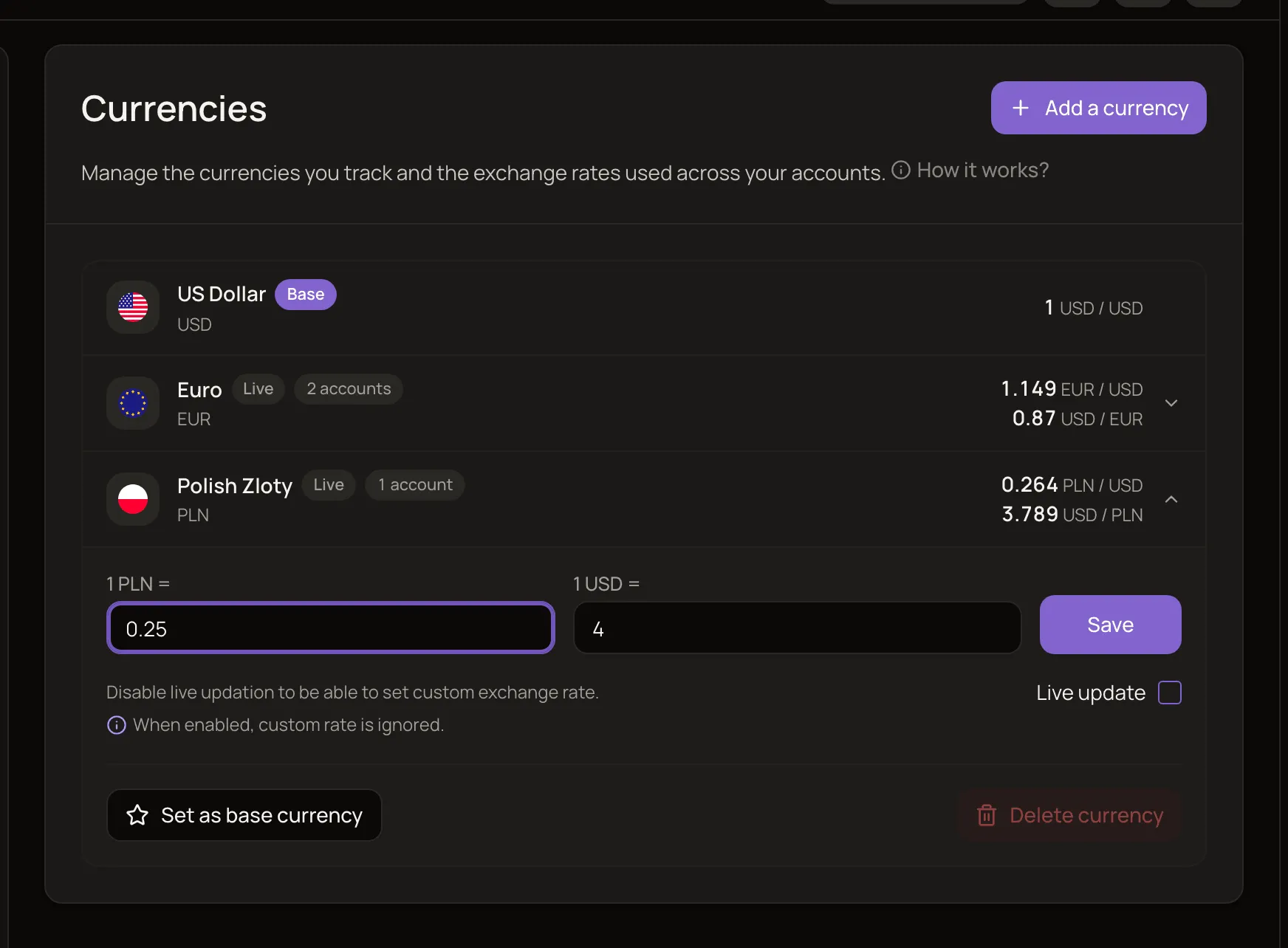
You get one rate per currency, with no date attached:
- New transactions and any transaction you edit and save use it, even when dated last year. Transactions you’ve already saved keep their base amounts until you edit them.
- Balances switch to it as soon as you save. For manually tracked accounts, MoneyMatter also redraws the whole balance history at that rate, so the chart stops following the market for that currency.
I’d leave Live update on for most currencies. You can’t set a rate per payment, and a transfer already records the real rate of each exchange. To go back, check Live update again and click Save.
If you move country
When the currency you think in changes, change your base currency and keep your data. Go to Settings → Currencies and add the new currency if it isn’t listed. Then expand its row, click Set as base currency and confirm.
MoneyMatter recalculates every transaction at the market rate for its date and converts balances at today’s rate. Your original amounts stay as you entered them. Before you start:
- Allow a few minutes. Keep the tab open. Until it finishes, you can’t add or change anything that involves amounts, on any device.
- Stop sharing first. MoneyMatter blocks the change while you share accounts or belong to a household.
- Expect to redo custom rates. You set them against your old base currency, so most of those currencies go back to Live. Set your rate again if you still want it.
- Do it once if you can. Switching back and forth can leave converted totals a few cents off from where they started.